
Top Tools to Record Gameplay Smoothly: Software List & Pro Tips
Recording your gameplay has become essential for gamers today. Whether you stream on Twitch or share clips on YouTube, you need reliable software. The right tool makes all the difference. This guide covers the best recording software for games and shares expert tips to help you capture smooth footage.
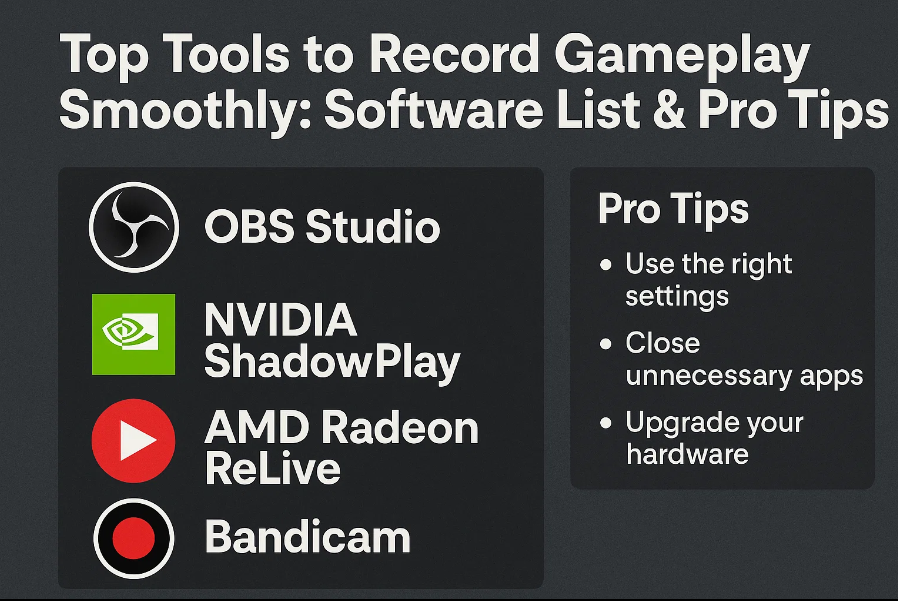
1: Top Software Options for Capturing Gameplay
Choosing the best game recording software depends on your needs. Some tools are free while others offer premium features. Let’s explore the top options available today.
OBS Studio (Open Broadcaster Software)
OBS Studio leads the pack for good reason. This free software offers professional-grade features. You can stream and record at the same time. The interface takes time to learn, but it’s worth the effort. OBS supports custom overlays and scene transitions. Many professional streamers rely on this tool daily.
The software works on Windows, Mac, and Linux. You get unlimited recording time with no watermarks. OBS uses minimal system resources when configured properly. The active community provides helpful tutorials and plugins.
NVIDIA ShadowPlay
NVIDIA graphics card owners have a built-in advantage. ShadowPlay comes free with GeForce Experience. It uses your GPU’s hardware encoding. This means less impact on game performance. The instant replay feature is incredibly useful.
You can save the last 20 minutes of gameplay with one button. The interface is simple and user-friendly. However, you need an NVIDIA graphics card to use it. The software automatically optimizes your game settings too.
Xbox Game Bar for Windows 10/11
Windows users have a hidden gem already installed. The Xbox Game Bar is built into Windows 10 and 11. Press Windows + G to open it instantly. This tool is perfect for quick recordings. You can capture clips without installing extra software.
The Game Bar includes basic editing features. It shows performance stats while you play. Audio mixing is straightforward and simple. The limitation is fewer advanced features than dedicated tools.
Bandicam
Bandicam specializes in high-quality game recording. It can capture up to 4K Ultra HD video. The software uses hardware acceleration efficiently. This reduces lag during intensive gaming sessions. Bandicam offers both screen and game recording modes.
The free version adds a watermark to recordings. You get a 10-minute recording limit without purchasing. The paid version removes these restrictions completely. Many users praise its compression technology and small file sizes.
Fraps
Fraps is a veteran in game recording software. It has been around for many years. The tool shows real-time FPS while you play. Recording is as simple as pressing one key. The software captures raw, uncompressed video files.
This results in excellent quality but massive file sizes. Fraps works best for short gameplay clips. The interface looks dated compared to modern alternatives. Still, it remains reliable and stable across different games.
Leawo Free Screen Recorder
Leawo Free Screen Recorder offers excellent value without cost. This tool records both screen and audio clearly. You can capture gameplay, tutorials, and video calls. The software includes a simple editing feature. Users appreciate its clean interface and ease of use.
The recording quality remains high across different games. You can schedule recordings in advance. The tool supports multiple audio sources simultaneously. No time limits or watermarks restrict your recordings. This makes it ideal for beginners and budget-conscious gamers.
Movavi Screen Recorder / Camtasia Studio
Movavi provides an all-in-one recording solution. The software combines recording with powerful editing tools. You can add annotations and effects easily. The interface is beginner-friendly and intuitive. Movavi works well for creating polished gameplay videos.
Camtasia Studio targets content creators and educators. It offers advanced editing capabilities after recording. The software includes a library of templates and effects. Both tools require payment but offer free trials. They suit users who want professional results quickly.
2: Helpful Tips to Improve Your Game Recordings
Having great software is just the starting point. These practical tips will elevate your recording quality significantly.
Use an SSD to ensure quicker data writing and reduce lag
Solid-state drives make a noticeable difference. Video files are large and require fast write speeds. Traditional hard drives can cause stuttering during recording. An SSD handles data transfer much more efficiently. This prevents dropped frames in your footage.
Install your recording software on the SSD. Save your recordings to the same drive initially. You can move files to slower storage later. The investment in an SSD pays off immediately.
Aim for 60 FPS to achieve smooth and fluid video playback
Frame rate matters more than most people realize. Recording at 60 FPS creates smooth, professional-looking videos. Lower frame rates appear choppy and less engaging. Modern audiences expect high-quality, fluid motion. Your viewers will notice the difference immediately.
Make sure your computer can handle 60 FPS recording. Test different settings before long recording sessions. Some games may require lower settings to maintain performance.
Adjust your game’s graphic settings to strike the right performance–quality balance
Recording impacts your system’s performance significantly. Lower your graphics settings if you experience lag. Find the sweet spot between visual quality and smooth gameplay. Ultra settings look amazing but may cause recording issues.
Test different configurations before important recordings. Turn off unnecessary effects like motion blur. Reduce shadow quality to improve performance. Your gameplay experience should remain smooth while recording.
Always check and fine-tune your audio before beginning long recordings
Poor audio ruins otherwise great footage. Test your microphone levels before recording. Make sure game sounds aren’t too loud or quiet. Listen for background noise and buzzing. Adjust input and output volumes accordingly.
Use headphones to monitor audio during recording. Check that your voice is clear and audible. Balance game audio with commentary appropriately. Good audio quality is as important as video.
Keep your recording software upgraded to the latest version
Software updates bring important improvements and fixes. New versions often include better compression algorithms. Updates may add support for recent games. Bug fixes prevent crashes during important recordings.
Enable automatic updates when possible. Check for updates before major recording sessions. Read update notes to understand new features. Staying current ensures optimal performance always.
Note: Standard screen capture tools often cannot record DRM-protected content, resulting in a black screen
Digital rights management creates recording challenges. Many streaming services use DRM protection. Standard recorders show only black screens with these sources. This limitation affects platforms like Netflix and Amazon Prime.
For these cases, you’ll need a specialized recorder such as CleverGet Recorder. This tool bypasses DRM restrictions legally. It records protected content without black screens. Always respect copyright laws when recording content.
3.Conclusion
Finding the best recording software for gaming depends on individual needs. Free options like OBS Studio offer professional features. Built-in tools like Xbox Game Bar provide convenient solutions. Paid software delivers advanced editing capabilities.
Remember that hardware matters as much as software. Use an SSD for better performance. Record at 60 FPS for smooth playback. Balance your graphics settings carefully. Test your audio setup before long sessions.
The best game recording software free options include OBS and Leawo. These tools provide excellent quality without financial investment. For DRM-protected content, consider specialized solutions. Keep your software updated for optimal results.
Start with a free tool to learn the basics. Experiment with different settings and configurations. Upgrade to paid software when you need advanced features. With the right setup, you’ll capture amazing gameplay footage every time. Your gaming content will look professional and engaging.
